
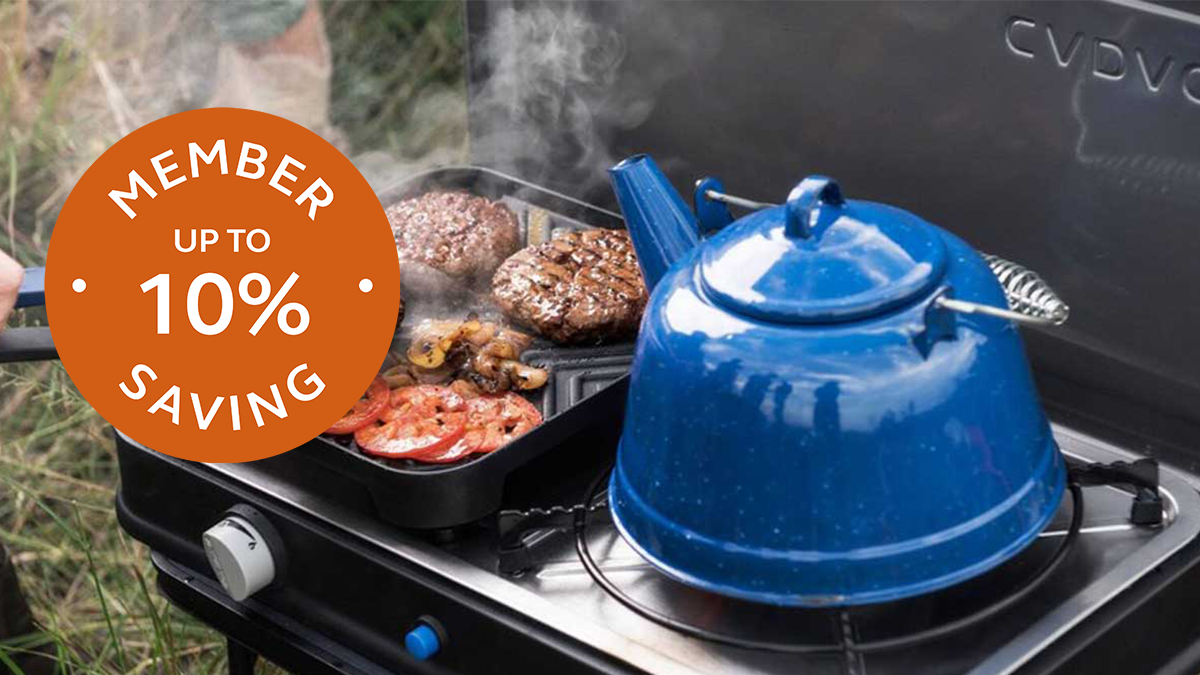
Save 10% at Club Shop
Save up to 10% on everything from solar panels to awnings, chairs to puncture repair kits, we've got what you need.
Find out more
 No. 1 rated UK touring club
Trusted membership organisation as rated on Trustpilot.
 Largest network of quality campsites
With a wide choice of campsites across the UK and Europe, your perfect pitch is waiting for you.
 Quality assured
All UK Club campsites are rated 9/10 for quality facilities and overall experience by our members.
 Expert knowledge
With over 115 years of experience helping people to explore the great outdoors.
 Great value for money
Start saving! Your membership pays for itself when you stay more than four nights anytime during a year.
 ABTA and ATOL bonded for peace of mind
ABTA and ATOL bonding providing financial protection and reassurance on your European and Worldwide package holidays.
How much does membership cost?
Membership of the Caravan and Motorhome Club (previously The Caravan Club) costs £69 a year (for you, a partner, and children under 18). There is an additional £10 joining fee unless you pay by Direct Debit. Add more family members (over 18 years old) for £10 per person.
How do I join the Caravan and Motorhome Club?
You can join online or by calling 01342 318 813, Monday to Friday 9am to 5.30pm. You can also join at UK Club Campsites, at our caravanning shows or pick up an application leaflet at most UK caravan dealers.
If I join online, how quickly will I be able to book UK Club campsites?
New members can have online access as little as one hour after joining online. Your email confirmation containing your membership number usually arrives within 48 hours of joining online.
What are the benefits of joining the Caravan and Motorhome Club?
Membership of the Caravan and Motorhome Club (formerly The Caravan Club) gives you access to our entire campsites network, including thousands of privately owned 5-van campsites (Certificated Locations), plus, you won't need to pay the additional £15 per night non-member fee on published prices when you book a UK Club campsite as a member. You can also take out Caravan Cover and a range of insurance products, and can enjoy discounts on a range of products and services.
*Caravan and Motorhome Club membership is £69 when paying by direct debit. By becoming a member, you won’t need to pay the additional £15 per night supplement when staying on UK Club campsites.
^As rated on Trustpilot


